Connect Claude Desktop to Hatchlog
Open Connect agents in Hatchlog and click Connect next to Claude Desktop. Hatchlog adds itself as an MCP server. In a new chat, Claude Desktop can read your board, plan work and move cards. Token cost is not measured for Claude Desktop, only for Claude Code.
Connect in one click
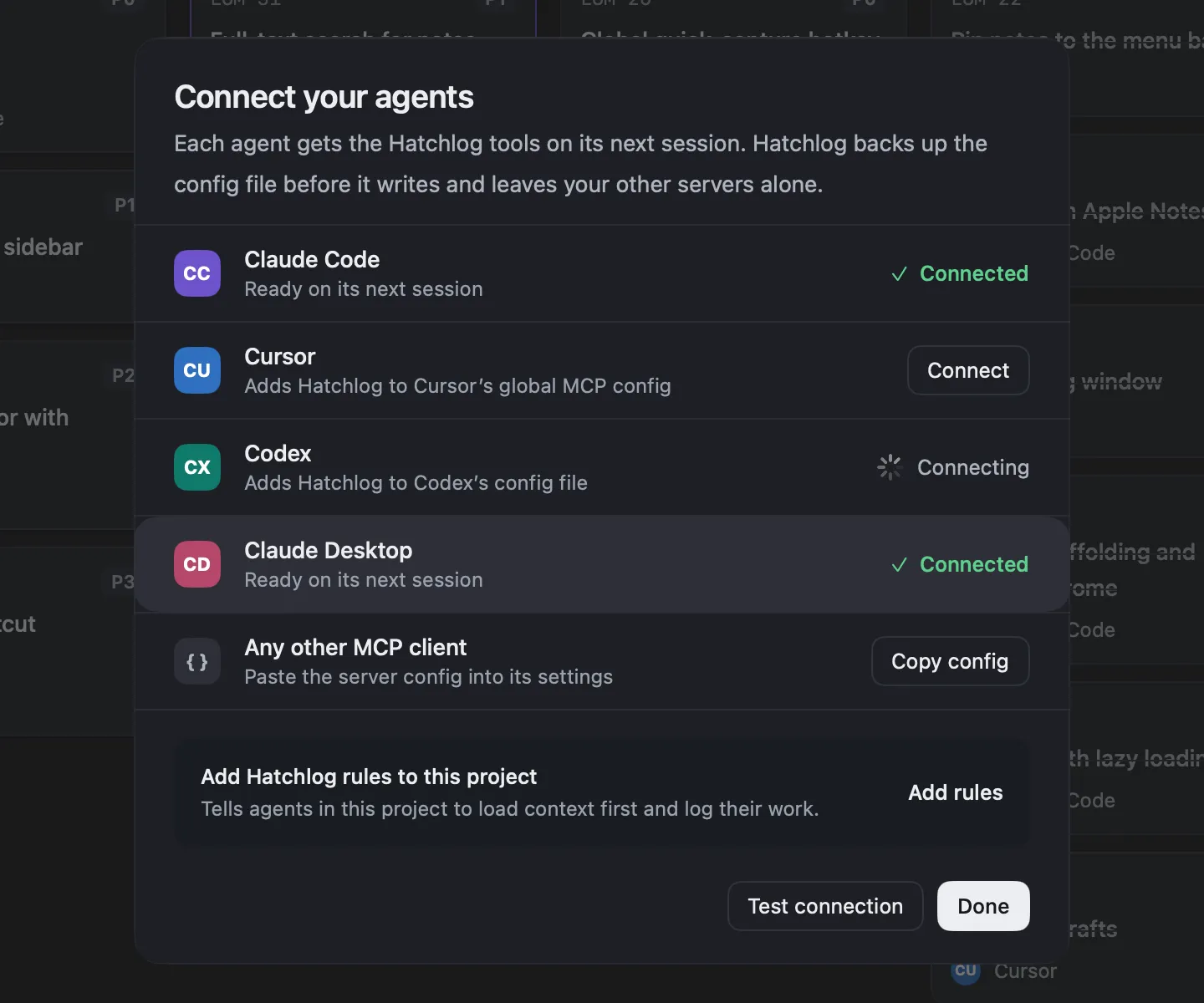
Open Connect agents from the Hatchlog sidebar. Find Claude Desktop in the list and click Connect. Hatchlog adds itself as an MCP server and leaves your other tools alone. You don't edit anything by hand.
What "Connected" means
When the row reads Connected, the Hatchlog tools are available to Claude Desktop.
In a new chat, you can ask it to plan work with write_plan and
add_tasks, pull the next task with next_task,
and update cards with update_task. Start a new chat for the tools to
load.
Token cost is Claude Code only
Hatchlog shows what each task cost in tokens for Claude Code. It does not measure token cost for Claude Desktop. Claude Desktop still reads your board and moves cards. Only the cost figures are left blank for its work. See Token cost for what is measured.
Check it works
In the Connect agents sheet, click Test connection. Hatchlog confirms that Claude Desktop can reach your board. In a chat, you can also ask it to list your projects. If it answers from Hatchlog, you're set.
Repair a connection
If Claude Desktop stops seeing Hatchlog, say after an update, open Settings → Agents and choose Repair for Claude Desktop. Repair puts the connection back. You never set anything up by hand.
Common problems
How do I know Claude Desktop is connected?
The Connect agents sheet shows "Connected" next to Claude Desktop, and it can call the Hatchlog tools in a new chat.
Does Hatchlog track token cost for Claude Desktop?
No. Token cost is measured for Claude Code only. Claude Desktop can still read and update your board.
Claude Desktop doesn't see Hatchlog. What now?
Open Settings → Agents and choose Repair for Claude Desktop. Repair puts the connection back. You never set anything up by hand.